

Barcode billing for busy counters
Scan, add, pay. AIFFICIENTO bills with USB barcode scanners, and a keyboard-first layout keeps the counter moving when the queue is long.
30 days free No credit card Every feature included
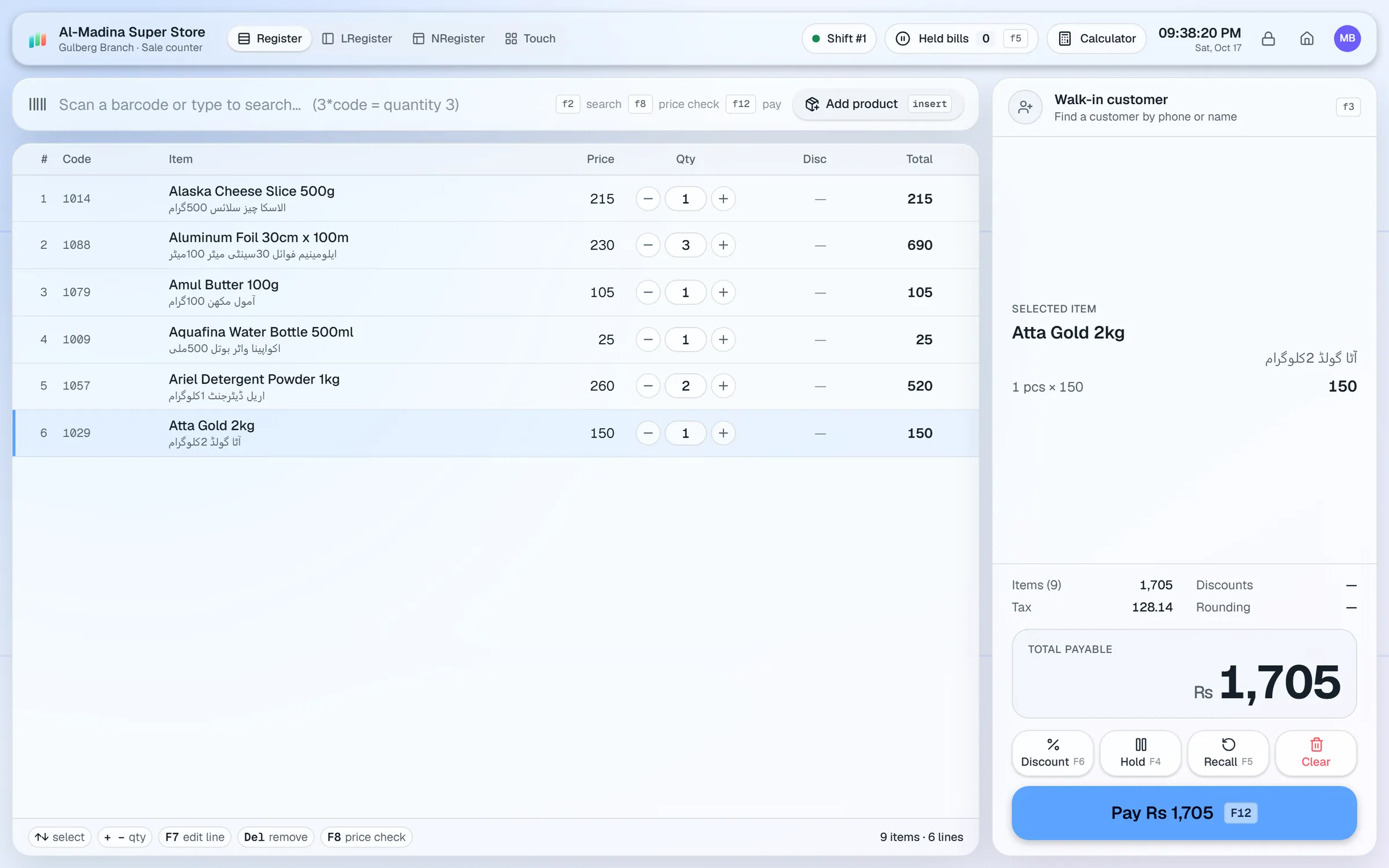
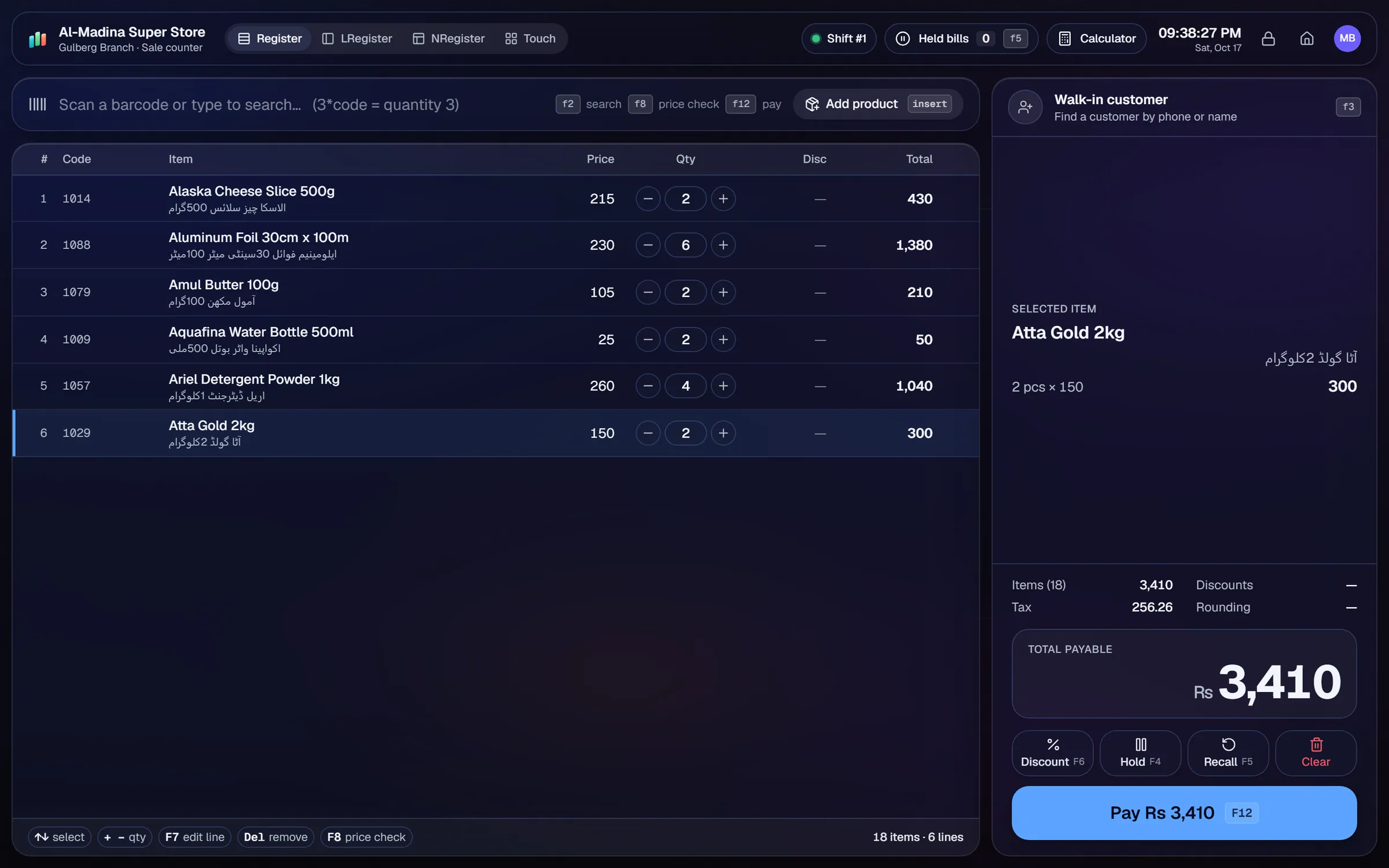
Plug in a USB barcode scanner and scan each item straight into the bill.
Type a quantity, an asterisk and then the code to add several of the same item at once. Three of an item does not need three scans.
The F-keys cover the main actions, so you can add items and take payment without touching the mouse.
Prefer tiles? Switch to the Touch layout and tap product tiles on a touchscreen.
Hold a bill when a customer steps away, and recall it when they come back to the counter.
Scan an item to see its price without adding it to the bill.
The counter is where the shop makes its money, and the bill is where mistakes cost time. Barcode billing keeps each sale quick and accurate.
How a sale runs
Scan the first item and it appears on the bill with its price. Keep scanning. Each item adds to the total, and the bill updates straight away. When the customer is ready, take the payment with cash, card, wallet, bank, customer credit or loyalty points, and split it between methods if needed. Change is calculated for you.
Quantity without repeat scans
Five packets of the same biscuit do not need five scans. Type the quantity, an asterisk and then the code, for example 3*code, and the item is added at that quantity. It is a small shortcut, and it saves a great deal of time over a busy hour.
Layouts for each counter
Some counters prefer the keyboard, and others work better with tiles. The keyboard-first layout uses the F-keys for the main actions. The Touch layout shows product tiles for tapping. Several register layouts are available, so you can pick the one that suits the counter.
When the queue grows
Hold a bill for a customer who has stepped away, and recall it later. A price check lets staff confirm a price for a customer without adding the item to the bill.
Setting up the scanners
Plug the scanner into a USB port on the counter terminal and test it with a few products before the shop opens. If a product does not have a barcode, find it by name or code, or print a label for it with the barcode label designer.
Questions, answered
Which barcode scanners work?
What is the 3*code shortcut?
Can I use a touchscreen?
What if a product has no barcode?
Can I try barcode billing before I pay?
Guides & articles
All articlesPOS Software in Bangladesh: VAT, Mushak 6.3 and EFD Basics
POS software in Bangladesh as of October 2026: Mushak 6.3 VAT invoices, the status of e-invoicing and NBR EFD devices, offline billing and a checklist.
Read guide →POS Hardware Price in Pakistan: Scanners, Printers, UPS
POS hardware prices in Pakistan for barcode scanners, thermal printers, label printers, cash drawers and UPS units, with mid-2026 ranges and tips.
Read guide →Best Billing Software for Retail Shops in India (2026 Guide)
Choose billing software for an Indian retail shop in 2026: GST invoices, counter speed, offline billing, and the questions to ask before you pay.
Read guide →Your next chapter starts at the counter.
Try every feature free for 30 days. No credit card. Bring your products, ring up a bill, ask Geto a question.
Windows 10/11 · Android app · works offline · any currency