

Backups and data safety for your shop
Shop data is worth protecting. AIFFICIENTO backs up your database on a schedule, checks each backup, and lets you copy backups to a USB drive or a network folder.
30 days free No credit card Every feature included
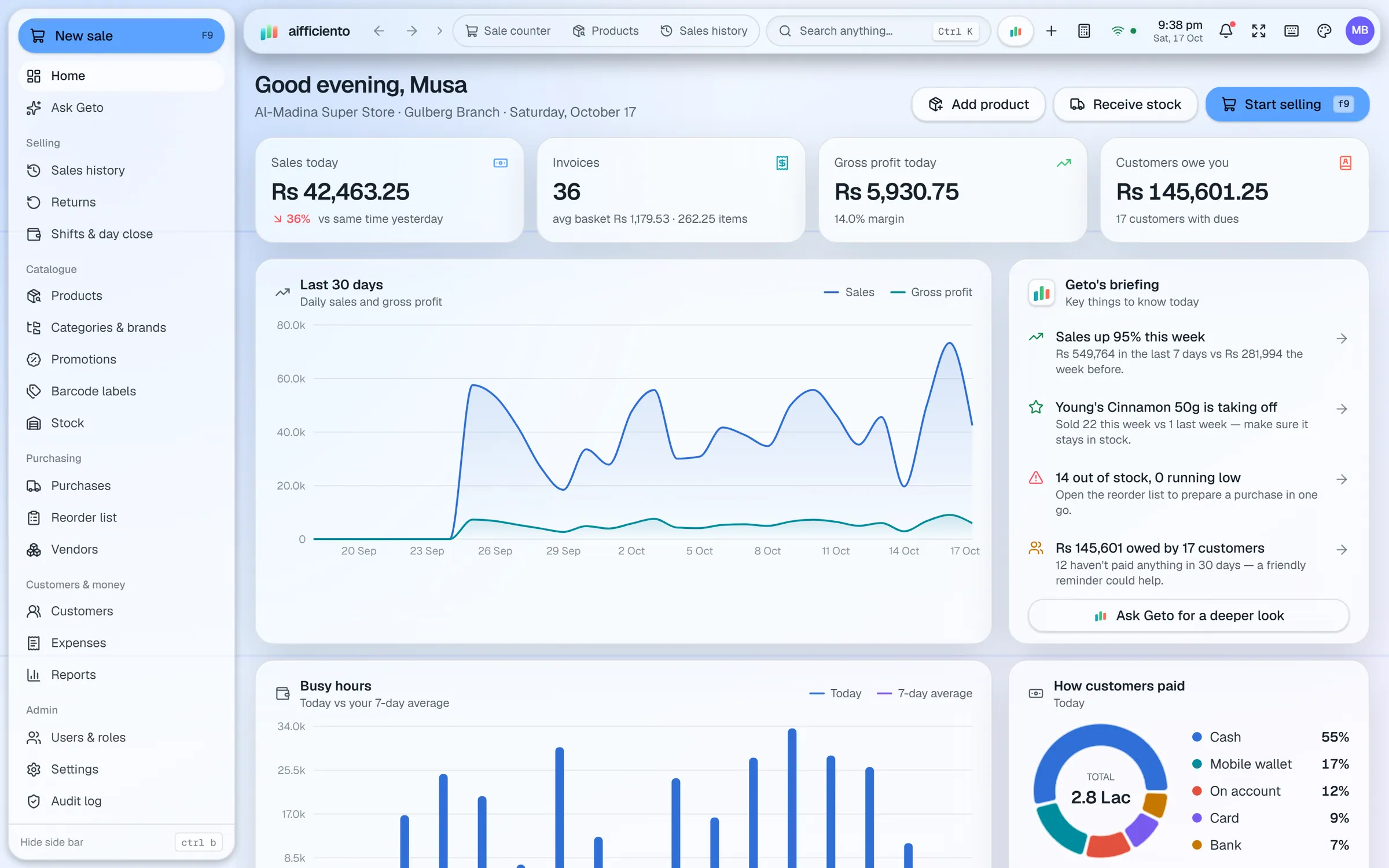
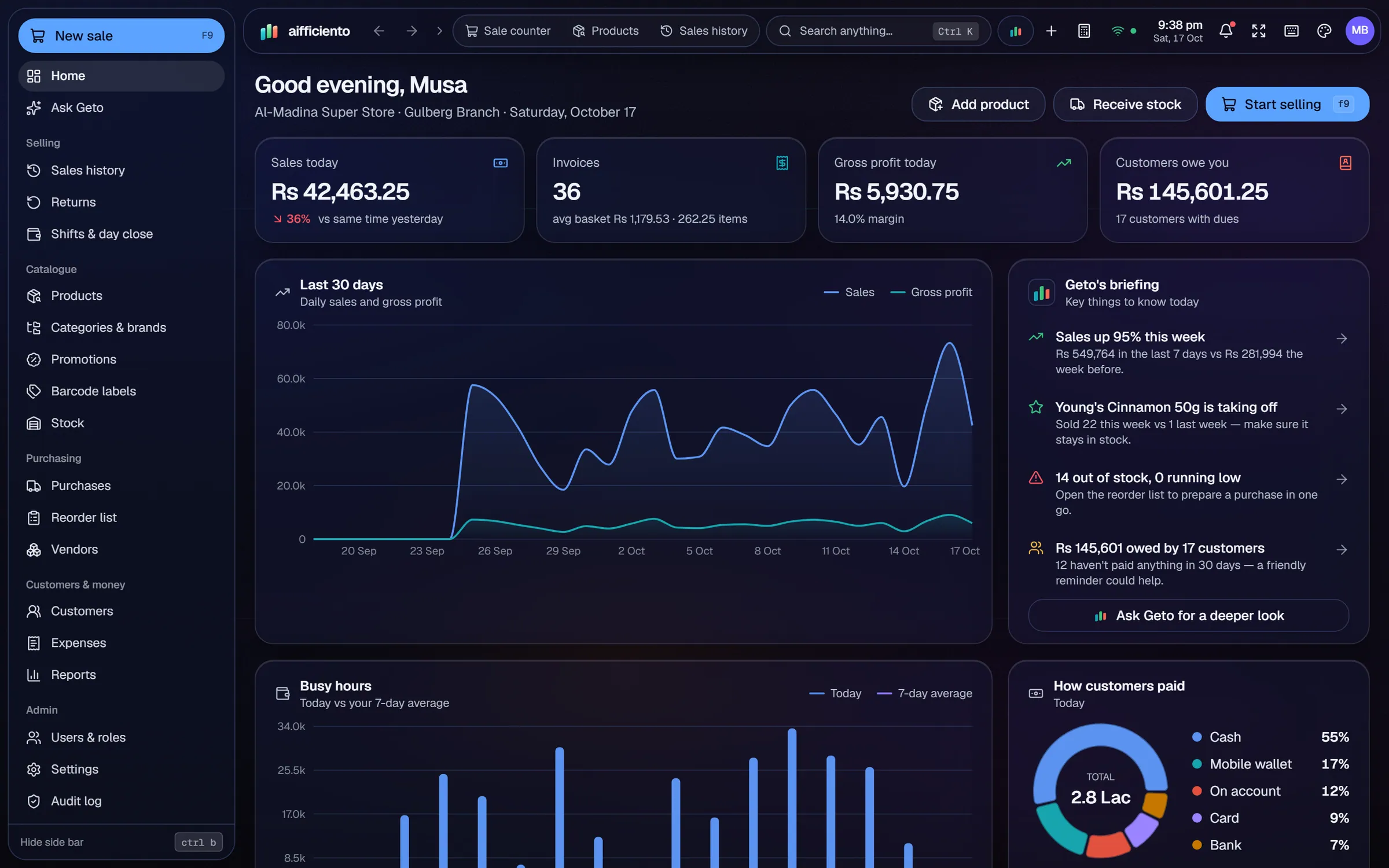
The Server backs up the database automatically on a regular schedule.
Each backup is checked with a checksum, so you know the copy is complete before you rely on it.
Send extra copies to a USB drive or a network folder, in addition to the Server’s own backups.
Restoring data needs a password, so a backup file cannot be restored by anyone who happens to find it.
The shop database lives on the Server PC in your shop. The cloud connection is optional.
The audit log and the device list show who did what and which devices are signed in, so unusual activity is easier to spot.
Losing a year of sales records is the sort of problem that is easy to prevent and very hard to fix afterwards. A backup routine that runs by itself, and a restore you have tested, are the two things every shop needs.
What is backed up
The Server holds the shop’s database: products, customers, sales, purchases, stock and settings. The scheduled backups copy that database regularly, and each copy is checked with a checksum. A checksum is a fingerprint of the file. When the fingerprint matches, the copy is complete and has not been damaged.
Where backups go
Backups stay on the Server by default. Add an extra folder on a USB drive or on a network share, and the copies go there too. Keep at least one copy off the Server PC, because a fire, a theft or a failed disk can take the Server and its own backups together.
Restoring
Restoring a backup needs a password, so the data cannot be overwritten by someone who finds a backup file. Test a restore on a spare PC once in a while, so you know the process works before you need it in a hurry.
Keeping data on your own PC
The shop database lives on the Server PC in your shop. The optional cloud connection covers AI features, updates, licensing and remote mobile access. It is not where the shop’s records are kept.
A simple routine
Check that the scheduled backups are running each week. Copy the latest backup to an extra drive, and store that drive away from the shop. Review the audit log and the device list at the same time, so you see who is signed in and what they changed.
Questions, answered
Where are backups stored?
How do I restore a backup?
What does checksum verification mean?
Is my shop data sent to the cloud?
Can I try the backup features before I pay?
Guides & articles
All articlesInventory Management Tips for Retail Shops
Practical inventory management tips for retail: ABC analysis, reorder points, cycle counts, dead stock clearance and expiry-first selling for small shops.
Read guide →Best Billing Software for Retail Shops in India (2026 Guide)
Choose billing software for an Indian retail shop in 2026: GST invoices, counter speed, offline billing, and the questions to ask before you pay.
Read guide →Best POS Software in Pakistan: How to Choose in 2026
How to choose POS software in Pakistan: key criteria, offline desktop vs cloud, a 30-minute demo checklist, and where AIFFICIENTO fits. October 2026.
Read guide →Your next chapter starts at the counter.
Try every feature free for 30 days. No credit card. Bring your products, ring up a bill, ask Geto a question.
Windows 10/11 · Android app · works offline · any currency